The Website Was Working. Then Someone Updated a Plugin.
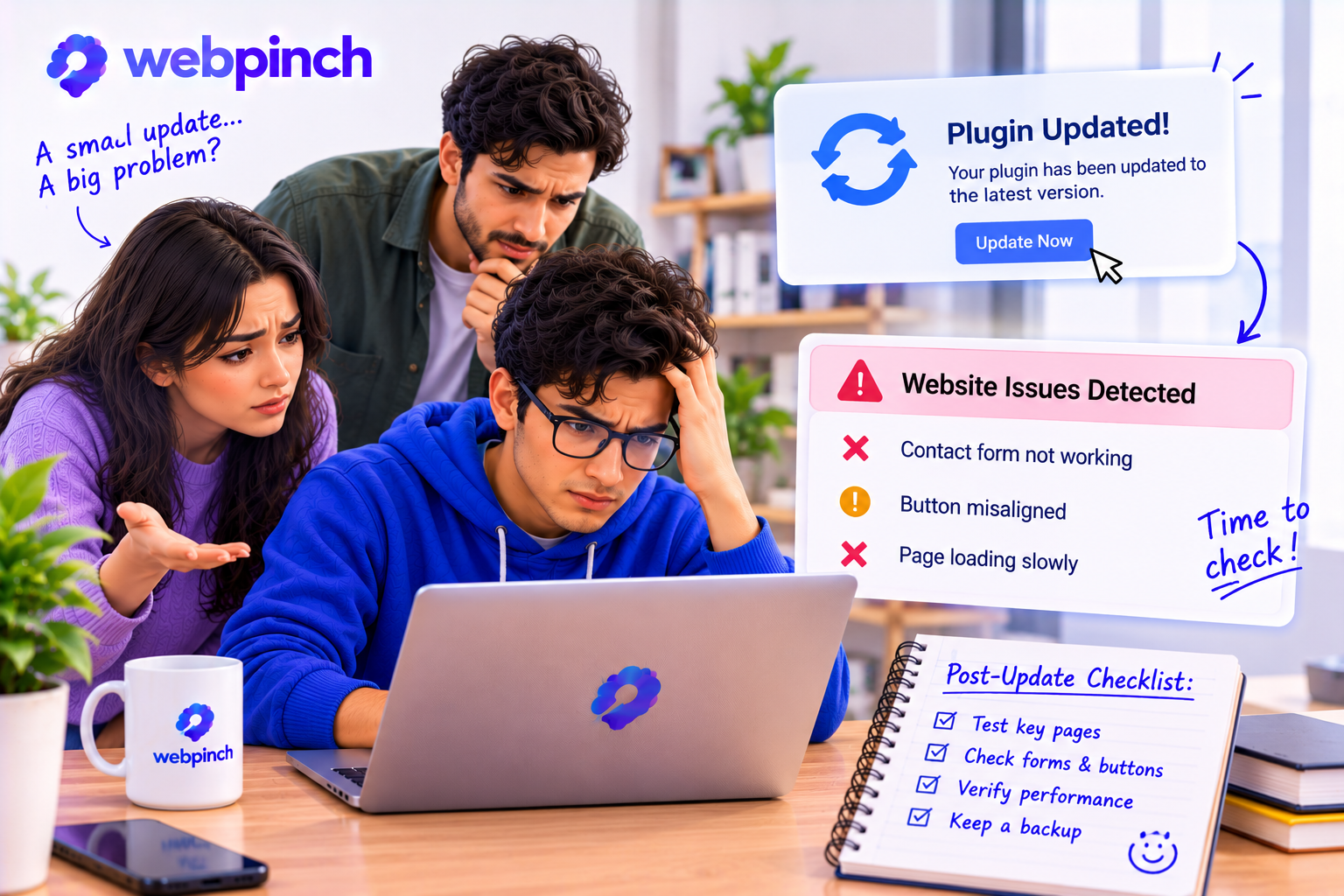
A website can be working perfectly on Monday and feel completely different by Wednesday.
Nobody changed the design. Nobody touched the homepage. The developer didn’t even open the code.
Then someone updated a plugin.
The contact form stopped sending messages. A button shifted slightly out of place. The page that looked fine yesterday suddenly took longer to load.
And the first question was, “What happened?”
The Update That Looked Harmless
Plugin updates are part of maintaining a website. They can improve security, fix bugs, and add useful features.
So when a notification says an update is available, clicking “Update” feels like the responsible thing to do.
Most of the time, it is.
But websites are connected systems. A plugin may depend on a theme, another plugin, or a particular version of the platform. An update can change how those pieces work together.
The problem isn’t that updates are bad. It’s that even a small change can affect something nobody thought to check.
The Homepage Isn’t the Whole Website
After an update, people often check the homepage first.
The logo looks right. The navigation works. The page loads.
Everything seems fine.
But what about the contact form? The checkout process? The booking calendar? The page that uses a special layout?
A website can look healthy while an important feature quietly stops working.
That’s why a quick visual check isn’t always enough. The important question is not simply, “Does the website open?”
It’s, “Can someone still do what they came here to do?”
A Small Check Can Save a Long Afternoon
Before updating a live website, it helps to have a simple routine:
Create a backup or make sure a reliable restore point exists.
Review what the update changes, especially if it affects a critical feature.
Test the update on a staging site when possible.
Check important pages and user actions after the update.
Keep track of what changed, so the team can investigate quickly if something breaks.
You don’t need to test every pixel after every update. Start with the parts of the website that matter most to visitors and the business.
A working contact form is more important than a tiny spacing difference in the footer.
Make the Change Visible
When a problem appears after an update, the team needs more than “The page looks weird.”
Which page? What changed? What should it look like?
A screenshot with a clear note can save several rounds of messages. Tools like Webpinch can help teams pin feedback directly to the part of the website that needs attention, making the issue easier to understand and follow up on.
That context matters when several people are involved. The person reporting the problem may not know the technical cause—and they shouldn’t have to.
The Real Goal Is Confidence
Website maintenance isn’t about avoiding every possible problem. That’s unrealistic.
It’s about making changes carefully, checking the right things, and knowing what to do when something unexpected happens.
Because the update itself might take only a minute.
Finding out what it broke can take the rest of the afternoon.
A little testing before and after the change can make that afternoon much shorter.
Try WebPinch free
Pin feedback on any website, capture screenshots automatically, and track everything on a Kanban board.