The Website Was Updated. The Team Was Still Reviewing the Old One.
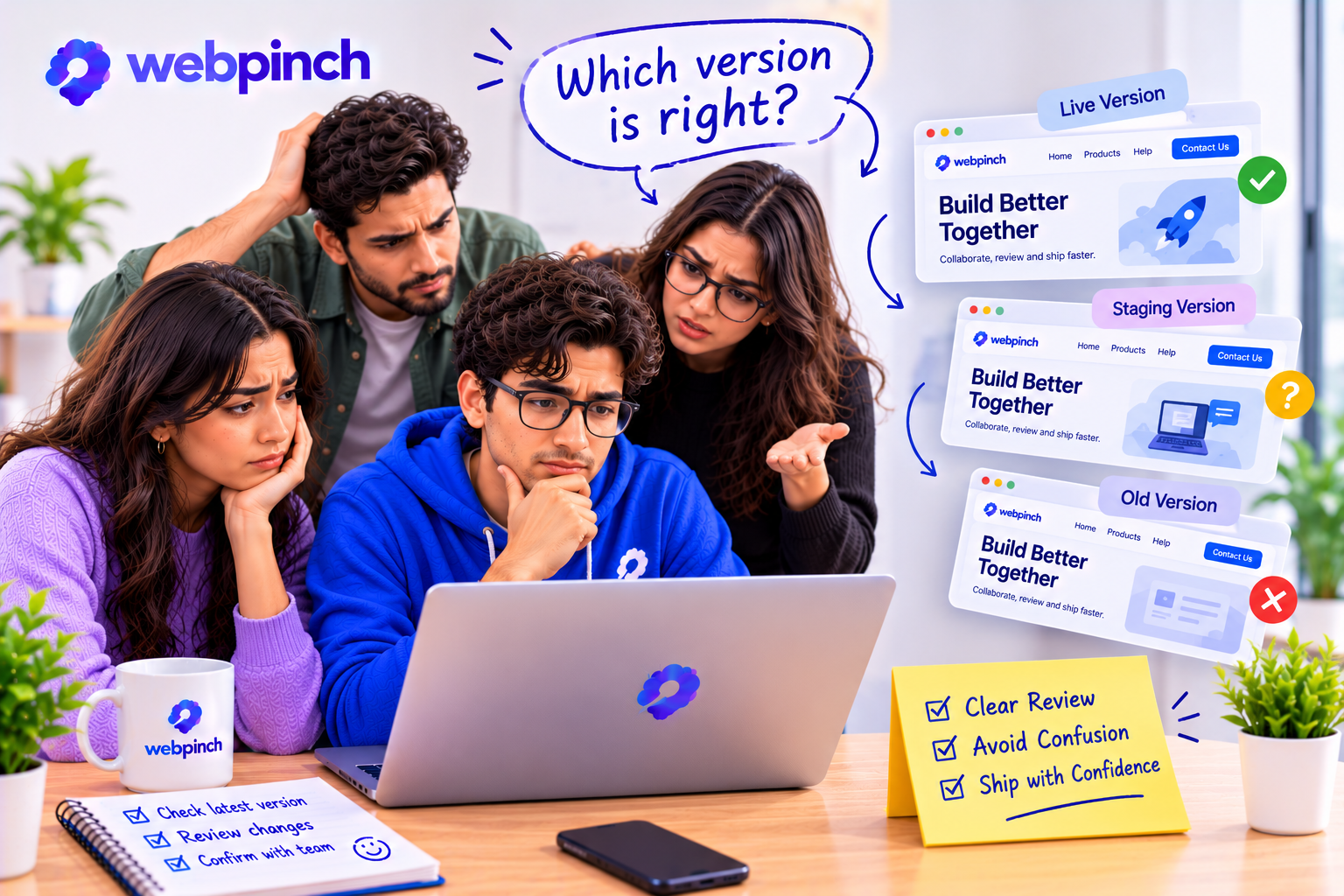
The designer had made the changes.
The developer had updated the page.
The client had even sent a message saying, “Looks much better now.”
Then someone opened the old link.
The headline was still the same. The button was in the wrong place. The issue everyone had spent time discussing seemed to be back.
For a few minutes, the team wondered whether the changes had actually been made.
They had.
Everyone was just looking at a different version of the website.
The Confusion Nobody Planned For
Website projects move quickly.
A developer updates a page, a designer adjusts the layout, and a client reviews the latest version. Meanwhile, someone may still have an older tab open or a screenshot saved from last week.
It’s easy to lose track of which version is current.
And when feedback is based on an old version, the team can end up fixing something that has already been changed.
That’s not a coding problem. It’s a review problem.
Make It Clear What’s Ready to Review
Before asking someone to review a change, make the next step obvious.
Tell them:
Which page has been updated.
What has changed.
Where they should review it.
Whether the change is on staging or live.
What kind of feedback is still needed.
A message like “The page is ready” can leave too much room for confusion.
A better message might be:
“The pricing page has been updated on staging. The new plan comparison and button layout are ready for review. Please check those two areas before we publish.”
That gives the reviewer a clear starting point.
Keep Feedback Connected to the Current Page
Screenshots are useful, but they can become outdated quickly.
A comment that made perfect sense yesterday might refer to an element that has already moved today.
Keeping feedback connected to the relevant page helps the team understand what is being discussed. Webpinch can help teams pin feedback directly to website elements, making it easier to follow the conversation without digging through old messages.
It also helps to close the loop when a change is complete. A quick note saying what was updated can prevent the same issue from being reported again.
One Current Version. One Clear Conversation.
The goal isn’t to stop people from saving screenshots or keeping notes.
It’s to make sure everyone knows which version they’re reviewing.
A website project becomes much easier when feedback is based on the current page, changes are clearly communicated, and everyone knows what needs attention.
Because sometimes the team isn’t disagreeing about the design.
They’re simply looking at two different versions of it.
Try WebPinch free
Pin feedback on any website, capture screenshots automatically, and track everything on a Kanban board.